The Copy menu item copies the selected items to the clipboard without deleting the items from the model. The contents of the clipboard can then be inserted back into any open SketchUp document by using the Paste menu item.
You can use cut, copy and paste to move geometry between open SketchUp windows. Contents of the clipboard will remain on the clipboard until replaced with other content using an additional Cut or a Copy operation.
Use the Previous option to return to the last view of your model. Previous can be used after using the Orbit Tool, Pan Tool, Position Camera Tool, Look Around Tool, or any of the Zoom tools.
Use the Next option to advance to the next view of your model. Next can be used after using the Orbit Tool, Pan Tool, Position Camera Tool, Look Around Tool, or any of the Zoom tools.
Activate the Previous and Next option from the Camera menu.
Use the Walk tool to maneuver through your SketchUp model as though you were walking through your model. Specifically, the Walk tool fixes the camera to a particular height, and then allows you to maneuver the camera around your model. The Walk tool is available only in Perspective mode.
Use the Zoom tool to move the camera (your view) in or out. Activate the Zoom tool from either the Camera Toolbar (Microsoft Windows), or Tool Palette (Mac OS X), or the Camera menu.
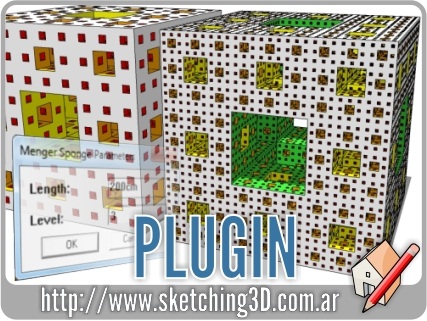
Description: This plugin will make a Menger Sponge for you. The Menger sponge is a fractal embedded in 3-dimensional space. To run the script, select Menger Sponge from the Draw menu. This brings up a dialog box. Enter the parameter values. Click OK, and place the component in the model.
Use the Push/Pull tool to push and pull Face entities to add volume to or subtract volume from your models. You can use push/pull to create volume out of any face type, including circular, rectangular, and abstract faces. Activate the Push/Pull tool from the Tool Palette (Mac OS X), the Modification Toolbar (Microsoft Windows) or the Tools menu.
Use the Orbit tool to rotate the camera about the model. The Orbit tool is useful when viewing geometry from the outside. Activate the Orbit tool from either the Camera Toolbar (Microsoft Windows), Tool Palette (Mac OS X), or the Camera menu.
Use the Rotate tool to rotate, stretch, distort, or copy entities along a rounded path. Activate the Rotate tool from the Modification Toolbar (Microsoft Windows), the Tool Palette (Mac OS X) or the Tools menu.